

At Mossy Nissan Escondido, we’re committed to being your trusted resource for everything automotive. From helping you find the perfect new or pre-owned vehicle to keeping your Nissan running its best with expert service, parts, and support, our team is here to make every step simple and stress-free. If you’re experiencing issues with your vehicle or just want guidance on getting the most out of your Nissan, give us a call or reach out today—we’re ready to help.
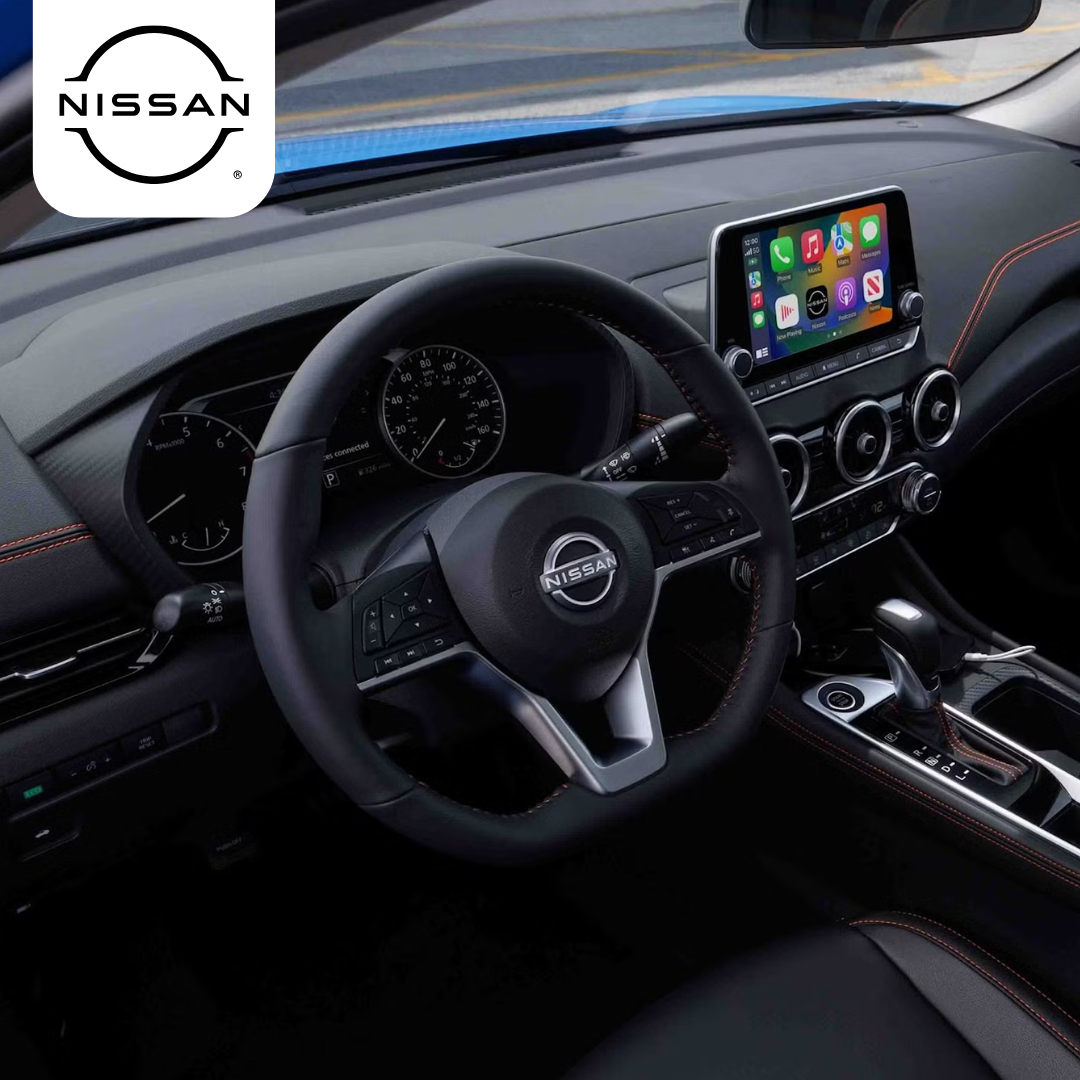
Apple CarPlay and Android Auto make staying connected easier than ever, but sometimes they refuse to cooperate. Common reasons range from outdated software and infotainment settings to cable, Bluetooth, or compatibility issues. By understanding the most frequent causes of connection problems in models like the Altima, Kicks, and Pathfinder, drivers can quickly pinpoint solutions and know when it’s time to turn to the experts for support.
Why Apple CarPlay or Android Auto May Not Connect in Your Nissan
It can be frustrating when CarPlay or Android Auto will not load. Many drivers report issues like Nissan Apple CarPlay not connecting or Nissan Android Auto not working in popular models such as the Altima, Kicks, and Pathfinder. These systems are designed to make driving safer and easier, so when they fail, it quickly becomes a headache.
The good news is that most problems come from simple issues. Common reasons include:
- Outdated phone or app software
- Wrong or blocked app settings
- Infotainment system not updated
- Bad or weak USB cables
- Bluetooth or Wi-Fi not paired right
- Other devices causing signal issues
- Phones or trims that are not fully compatible
Each of these problems can be solved with the right steps. In many cases, updating your phone or checking your cable is enough to fix the problem. For tougher issues, a visit to a Nissan service center can provide the reset or update your vehicle may need.
1. Outdated Phone or App Software
One of the most common causes of Nissan Apple CarPlay problems is old phone software. If your iPhone or Android has not been updated, CarPlay or Android Auto may not connect at all. Even a small delay in updates can lead to issues that stop the system from working. Altima drivers often run into this problem after skipping a few phone updates. The car’s system expects the newest version, but the phone is still behind.
Things to check include:
- iPhone iOS version or Android system update
- The Android Auto app version on your phone
- Restarting your phone after installing updates
A quick update often solves the problem. If CarPlay or Android Auto still fails, check the other possible causes.
2. App Permissions or Restrictions Blocking the Connection
At times, the issue with Nissan Android Auto not connecting is not the phone or cable. It can be the app settings. If Android Auto does not have the right permissions, it will not link to your Nissan system.
Drivers of the Kicks may face this when privacy settings are too strict. Even one blocked setting can stop the system from starting. Check these areas on your phone:
- Location: Make sure location services are turned on.
- Microphone: Allow the app to use voice input.
- Notifications: Give access so alerts can show on the screen.
- Screen time or app limits: Remove any rules that block Android Auto.
If you use an iPhone, check that CarPlay is not restricted under Screen Time. One simple setting can cause a full block.
Once the right permissions are in place, the system should connect right away.
3. Infotainment System or Vehicle Settings Not Updated
If Nissan Apple CarPlay wireless not working keeps showing up as an issue, your car’s system may be out of date. The infotainment unit must have the latest firmware for smooth use. Without updates, small bugs can stop the link.
Owners of the Pathfinder often face this when the system skips an update. The fix can be as easy as a software refresh at the dealership.
Steps to check:
- Go to your Nissan settings menu.
- Look for system updates and install if one is shown.
- Make sure CarPlay or Android Auto is turned on in the settings.
- Confirm that the “Do not ask again” option has not been clicked, which blocks auto connection.
A quick review of your car’s settings can save time. Once the system is updated, the link to your phone should work again.
4. USB Cable or Port Problems
A common cause of Nissan Android Auto not working is a bad cable or port. Even if your phone is fine, the link can fail if the cable is weak or the port has dirt inside.
Altima drivers often see this when they use a low-grade cord or one that is too long. A quick check of your cable and port can solve the issue fast.
Things to check:
- Use the cable that came with your phone, if you still have it.
- Keep the length under three feet for best signal.
- Avoid cable hubs, splitters, or cheap third-party cords.
- Test a second USB port if your car has more than one.
- Look for dust or debris inside the port and clean it with care.
If the cord is old, try a new one that meets the maker’s specs. Many times, a fresh cable is all it takes to get the system working again.
5. Bluetooth and Wi-Fi Connection Errors
When Nissan Apple CarPlay not connecting happens on wireless setups, the cause is often Bluetooth or Wi-Fi. If either drops, the link fails.
Owners of the Kicks may see this when their phone tries to join a home or public Wi-Fi instead of the car. Even a brief signal loss can stop the system.
Steps to check:
- Make sure Bluetooth is turned on and paired with your car.
- Confirm Wi-Fi is active on your phone.
- Forget old or unused car profiles and reconnect fresh.
- Check that your phone is not set to auto-join another Wi-Fi.
- Restart both your phone and the car’s system.
A clean, stable link is key. Once both Bluetooth and Wi-Fi are synced, CarPlay or Android Auto should load without delay.
6. Interference From Other Devices
Sometimes the cause of Nissan Android Auto not connecting is not your phone or your car. The problem can come from other devices nearby. Pathfinder drivers may notice this when a dashcam, hotspot, or second phone tries to link at the same time. These devices can pull the signal away from the system and break the link.
Check for these issues:
- A second phone paired to the car’s Bluetooth.
- A Wi-Fi hotspot left on in the car.
- A dashcam or add-on unit using the same band.
- Auto-connect turned on for other wireless devices.
To fix this, turn off or unpair the extra device. Then restart your phone and reconnect it to your Nissan. Once the space is clear, the link should work as planned.
7. Compatibility Limitations With Older Devices
Not all phones work with every car system. Some Nissan Apple CarPlay problems come from older phones that no longer meet the system needs.
Altima drivers may see this when trying to pair a phone that has not had a software update in years. Even if the cable is new and the car is in good shape, the phone may not link.
Common issues with older phones:
- Outdated iOS or Android versions no longer supported.
- Lack of wireless support on phones built before newer updates.
- Slower processors that cannot keep the link stable.
If your phone is too old, the best fix is an upgrade. A newer device ensures smooth pairing and stronger links with your Nissan.
When It’s Time to Visit a Nissan Service Center
If you have tried every step and still face Nissan Android Auto not working or Nissan Apple CarPlay problems, it may be time for expert help.
Altima, Kicks, and Pathfinder owners may find that the issue is deeper than a cable or setting. At that point, a trained tech can check the car’s system and make repairs.
Reasons to visit a service center:
- Updates are not loading or fail to install.
- USB ports show damage or stop working.
- The infotainment system freezes or restarts often.
- CarPlay or Android Auto will not connect even after resets.
At Mossy Nissan Escondido, our team can run tests, apply updates, or replace faulty parts as needed. If you’re in Harmony Grove, Felicita, Richland, North Broadway, or Midway, contact or visit us today for reliable service and support.
Frequently Asked Questions
Drivers often have quick questions about Apple CarPlay and Android Auto in their Nissan. These answers can help clear up the most common concerns.
Why won’t Apple CarPlay or Android Auto connect to my Nissan?
Connection issues can stem from bad cables, disabled settings, outdated software, or damaged USB ports.
Does wireless CarPlay require specific settings in a Nissan?
Yes. Wireless CarPlay requires Wi-Fi and Bluetooth to be turned on, and your phone must be paired with the vehicle.
How do I troubleshoot connectivity issues in my Nissan?
Start by checking your cable, making sure settings are enabled, restarting your phone, and confirming system updates are installed.
Can outdated software on a Nissan cause CarPlay problems?
Yes. If the infotainment system is not up to date, it may block or disrupt CarPlay and Android Auto functions.
Getting clear answers to these issues helps you know what to fix at home and when to seek help at a Nissan service center.
Find Support and the Right Nissan for You
If your Apple CarPlay or Android Auto issues continue, our team at Mossy Nissan Escondido is here to help. Drivers in Harmony Grove, Felicita, Richland, North Broadway, and Midway can count on us for expert care and guidance.
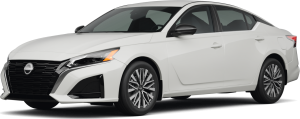
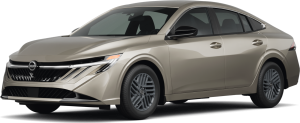
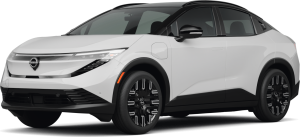
We also invite you to explore our wide range of models, including the Altima, Kicks, and Pathfinder. Each offers smart tech, strong comfort, and features built for your daily drive.
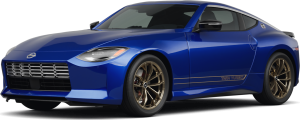
For those who want to learn more about in-car technology, you may also like our guide on models with Android Auto/Apple Carplay. If you’re still deciding between platforms, we cover the key differences in Apple Carplay vs Android Auto. And if performance excites you, take a look at the 2025 Nissan Z Specs to see how style and speed meet in one of the most affordable sports cars available.
No matter what you’re searching for, keep exploring our site for the latest Nissan news, updates, and available models.
Get Directions to Mossy Nissan Escondido
Disclaimer: All information is provided for general informational and entertainment purposes only. While we strive for accuracy, we cannot guarantee that all content is complete, current, or error-free. Any reliance you place on such information is strictly at your own risk. This article may include opinions and is not endorsed by, or officially affiliated with, any vehicle manufacturer or brand. Always consult official sources – such as the vehicle’s owner’s manual, authorized dealerships, or certified professionals – for the most up-to-date and personalized information.