

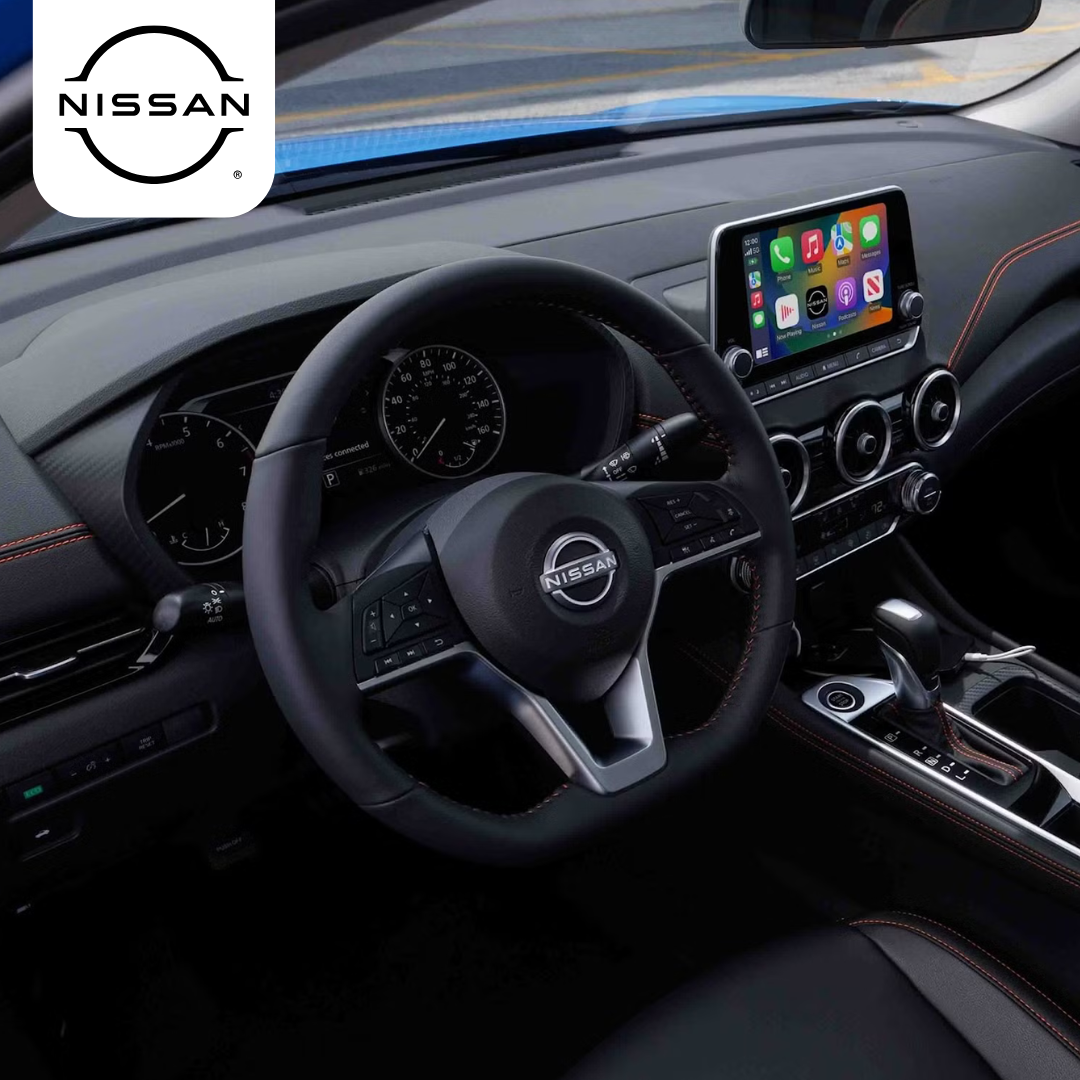
Smartphone tech isn’t just for your pocket anymore—it’s front and center in today’s most connected vehicles. Nissan drivers now have access to both Apple CarPlay and Android Auto, giving you hands-free access to your favorite apps, navigation tools, and playlists right from your dashboard. But which system delivers the better experience in your Nissan: Apple’s sleek CarPlay or Android Auto’s Google-powered interface? Whether you’re navigating through Felicita or heading down North Broadway, choosing the right setup can make your drive smoother, safer, and more enjoyable.
For personalized tech guidance and a closer look at Nissan models equipped with both systems, visit or contact Mossy Nissan Escondido today.
Which Smartphone Integration Works Best in Your Nissan?
Choosing between Apple CarPlay and Android Auto in your Nissan starts with one simple question: which phone do you use? If you have an iPhone, your Nissan supports Apple CarPlay. If you have an Android phone, Android Auto will be your go-to. Both systems work well, but each one has small perks that may sway your choice.
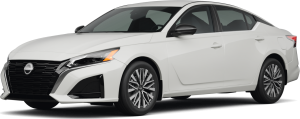
Many new Nissans, like the Altima, come with both systems built in. That means you don’t have to pick a system when you buy your car. Instead, your car will match what your phone uses. This gives drivers more ease, and less to think about.
Here’s what both systems have in common:
- They connect your phone to your car’s screen
- You can make calls, send texts, and use maps
- They let you listen to music or podcasts
- Both work with voice commands for safer driving
But which one is better for your daily drive?
That depends on how you like to use your phone. Apple CarPlay is great for iPhone users who like a clean, smooth look. It copies the feel of your phone screen and keeps things simple. Many users also like the way it works with Siri and Apple Maps.
Android Auto is a great match for those who use Google apps. It pairs well with Google Maps, Waze, and Google Assistant. It also has more third-party app support in some cases.
Nissan has also made things easier with fewer wires. Many models now offer Nissan Apple CarPlay wireless support. That means you don’t need to plug in every time you get in the car. Just start the engine, and your iPhone connects on its own.
Whether you drive short trips around Escondido or longer drives through Harmony Grove, having the right system can help. The best choice depends on your phone, how you use it, and what features matter most to you.
Setup and Compatibility: Getting Started with Each System
Getting started with Apple CarPlay or Android Auto in your Nissan is quick and simple. Whether you're in a Frontier or another model, setup takes just a few steps. The process will depend on your phone, but both systems aim to make things easy.
To connect Apple CarPlay:
- Use a USB cable or connect wirelessly (in some trims)
- Unlock your iPhone and allow the system to sync
- The CarPlay icon will appear on your screen
- Tap it to access your apps
To connect Android Auto:
- Plug in your phone with a USB cable
- Accept the terms on your screen
- Your phone may ask to download or update the Android Auto app
- Once paired, tap the Android Auto icon to begin
The Nissan Android Auto setup may ask for a few more steps if it's your first time using it. But once it’s connected, the system will remember your phone. Future drives will be much faster.
Wireless connection may not be standard in all trims. Some base models still need a USB cord. Higher trims of the Frontier and other new models may offer wireless support for both systems.
Both systems work best when your phone’s software is up to date. Check for updates before you connect. This helps avoid bugs and ensures smooth use of your maps, music, and more.
If you're unsure whether your Nissan supports wireless pairing or which ports to use, a quick look at your owner’s manual can help. Or, visit Mossy Nissan Escondido for a hands-on demo.
User Interface Differences That Matter on the Road
Both Apple CarPlay and Android Auto let you control your phone from your Nissan’s screen. But the way they look and feel is not the same. If you drive a Nissan Kicks, you’ll notice the difference right away. Each system has its own layout, and that can change how easy it is to use while driving.
Apple CarPlay:
- Looks and feels like an iPhone screen
- Uses large app icons in rows
- Swipes left or right to move through pages
- Clean, simple layout with soft colors
- Works well if you’re used to iOS
Android Auto:
- Has a more basic look with large blocks
- Uses a scroll-down menu for most apps
- Offers split screen on some displays
- Shows info in a bar at the bottom of the screen
- Pairs well with Google apps and tools
In side-by-side use, Android Auto often shows more info at once. For example, you might see your map and music at the same time. CarPlay keeps one app on screen at a time, which some drivers find less helpful.
Some drivers also ask, “Does Nissan have Android Auto?” The answer is yes—many newer models, including the Kicks, support both systems. Some models even allow you to switch back and forth, depending on which phone is plugged in.
Both systems are made to be used without taking your eyes off the road. Still, one may feel more natural than the other. If you use an iPhone every day, CarPlay will likely feel more smooth. If you're used to Google tools, Android Auto will feel like home.
No matter which one you pick, your drive through Felicita or Richland will feel more connected and safe.
Navigation Apps: Google Maps vs. Apple Maps
Getting where you need to go is one of the most useful parts of using your phone in your car. Both Apple CarPlay and Android Auto let you use top map apps. But they don’t work the same. The right fit depends on how you like to see info on your screen.
If you drive a Nissan Altima, you’ve likely used your phone for turn-by-turn directions. The Nissan Apple CarPlay setup makes this process easy. Plug in your phone, tap the map icon, and start your route.
Here’s how the two main apps compare:
| Feature | Google Maps (Android Auto & CarPlay) | Apple Maps (CarPlay only) |
| Speed of updates | Fast and often | Slower, but has improved |
| Search results | More detailed and broader | Focuses more on nearby spots |
| Real-time traffic | Color-coded with side routes shown | Shows delays, but fewer details |
| Voice commands | Works with Google Assistant or Siri | Siri only |
| Screen view | Split-screen supported (Android Auto) | Full-screen only |
Google Maps tends to give more info on screen. It also offers more ways to interact, like pinch-to-zoom and swipe controls. This can be helpful in busy traffic around Miday or Richland.
Apple Maps is clean and simple. If you prefer a more basic view with fewer taps, it may be your top choice. It’s a great fit for drivers who like the look and feel of iOS.
No matter which system you use, both apps will get you where you’re going. They both offer voice help, live traffic, and fast route updates. The main choice comes down to layout and how much control you want while on the road.
Media, Messaging, and Multitasking on the Go
For most drivers, staying in touch and playing music are just as key as getting directions. Apple CarPlay and Android Auto both help with that. Each one gives you quick ways to text, call, and stream—all while keeping your hands on the wheel.
In a truck like the Nissan Frontier, these tools come in handy. The Nissan Apple CarPlay app makes it easy to bring your music, maps, and texts to the dash. Just one tap, and you’re set.
Here’s what both systems let you do:
- Play music from apps like Apple Music, Spotify, Pandora, or YouTube Music
- Send and get texts using voice commands (Siri or Google Assistant)
- Make calls with one tap or simple voice prompt
- Switch apps fast without closing what you’re already doing
Where the systems differ is in how they show all this on screen:
| Feature | Apple CarPlay | Android Auto |
| Media controls | On the main screen or within apps | Always visible on bottom bar |
| Texts and calls | Full screen with fewer steps | Banner style for fewer distractions |
| Split view multitasking | Limited | Often shows two apps at once |
| Voice commands | Siri | Google Assistant |
Android Auto is built for users who want more on screen at once. If you're driving through a busy area and need both your music and maps in view, Android Auto makes it easy.
Apple CarPlay puts more focus on one task at a time. It keeps the screen less crowded, which some drivers prefer. It works well if you tend to use fewer apps while driving.
In the end, both systems help you do more without taking your eyes off the road. Whether you’re in the Frontier or any other Nissan, they’re designed to keep things safe, smooth, and simple.
Does Your Smartphone Decide the Better System?
Your choice between Apple CarPlay and Android Auto often comes down to the phone you use. If you own an iPhone, Apple CarPlay is designed to work seamlessly with your device. Android users will find Android Auto fits their needs better.
In Nissan models like the Kicks, you can enjoy these systems without hassle. Some trims even offer Nissan Apple CarPlay wireless, so iPhone users don’t need to plug in every time they drive.
Here’s how your phone influences the experience:
- iPhone users: Apple CarPlay offers smooth, wireless connections in many Nissan models.
- Android users: Android Auto connects easily and supports many Google apps.
- Switching phones: Nissan models with both systems adapt to whichever phone you bring.
- App choices: Your preferred music, maps, and messaging apps will work best on your phone’s platform.
No matter what phone you have, both systems focus on safe, easy use. The real question is which one feels right to you. Trying both in person, especially in a vehicle like the Kicks, can help you decide.
In short, your smartphone often decides which system will serve you best on every drive.
Which Nissan Models Offer Apple CarPlay and Android Auto?
Many Nissan vehicles come with both Apple CarPlay and Android Auto as standard features. This lets you pick the system that fits your phone and your style. Setting up your device is simple, whether it’s through the Nissan Android Auto setup or Apple CarPlay.
Here are some popular Nissan models with these features:
- Nissan Altima: Offers both systems with easy setup and a user-friendly touchscreen.
- Nissan Frontier: Supports smartphone integration for hands-free calls and music.
- Nissan Kicks: Comes equipped with Apple CarPlay and Android Auto for smooth daily drives.
Most Nissan models offer wired connections, but newer trims often include wireless options. This means iPhone users can enjoy wireless CarPlay without plugging in every time.
Before using, make sure your phone’s software is up to date. This helps the system run smoothly and avoid glitches.
If you want help setting up or want to see these features in action, Mossy Nissan Escondido is ready to assist. You can test drive models like the Altima and experience these tech features firsthand.
No matter which Nissan you choose, staying connected has never been easier.
Apple CarPlay or Android Auto: Which Should You Choose?
Deciding between Apple CarPlay and Android Auto often comes down to what fits your needs best. Both systems bring your phone’s key features into your Nissan, like the Frontier. But each offers a slightly different experience.
Here are some points to think about before you decide:
- Phone type: iPhones work best with Apple CarPlay. Android phones pair well with Android Auto.
- Ease of setup: The Nissan Android Auto setup is simple, but wireless CarPlay is also easy for iPhone users.
- App use: If you prefer Google Maps or Google Assistant, Android Auto is your choice. For Apple Music or Siri, CarPlay fits better.
- Interface: CarPlay has a clean, polished look. Android Auto offers multitasking with split screens.
- Driving habits: If you want fewer distractions, CarPlay’s simple layout might suit you. If you like more info on screen, Android Auto works well.
Both systems help keep your eyes on the road. The best way to choose is to try both in a Nissan like the Frontier. That way, you can see which feels right for your drives around Escondido or nearby towns.
No matter which you pick, both systems improve your drive with safe, easy access to the apps you use most.
Frequently Asked Questions
Many drivers want clear answers about smartphone integration systems before choosing which to use in their Nissan. These questions help address common concerns about Android Auto and Apple CarPlay features, setup, and future availability.
Will Android Auto be phased out?
No, Android Auto is not being phased out. It continues to be supported and updated by Google for use in vehicles.
What are the disadvantages of Android Auto?
Android Auto can sometimes feel less polished compared to Apple CarPlay. It may also be less intuitive for users unfamiliar with the Android ecosystem.
Is it worth getting Android Auto?
Yes, Android Auto is worth getting if you use an Android phone and rely on Google services. It offers strong app compatibility, voice control, and multitasking features.
How do I set up CarPlay on my Nissan?
To set up CarPlay on your Nissan, plug your iPhone into the USB port or connect wirelessly if your model supports it. Then unlock your phone and follow the prompts on your vehicle’s touchscreen to enable CarPlay.
What year did Nissan start having Apple CarPlay?
Nissan began including Apple CarPlay as a feature in many models starting around 2017.
If you have more questions or want help with setup, feel free to contact or visit us at Mossy Nissan Escondido. Our team is ready to assist you with hands-on demonstrations and personalized support.
Visit Us in Escondido and Explore More Nissan Features
Whether you live in Harmony Grove, Felicita, Richland, North Broadway, or Miday, Mossy Nissan Escondido is here to help. We offer a wide range of vehicles, including the Altima, Frontier, and Kicks, all equipped with the latest tech like Apple CarPlay and Android Auto.
To learn more about Nissan’s features, check out our guides on the 2025 Nissan Z specs, explore which models have zero gravity seats for extra comfort, or find out how to open the hood of your Nissan. These resources add helpful info beyond smartphone integration.
For hands-on help or to see these systems in action, contact or visit Mossy Nissan Escondido today. Our team is ready to assist you and make your drive easier and more connected.
Disclaimer: All information is provided for general informational and entertainment purposes only. While we strive for accuracy, we cannot guarantee that all content is complete, current, or error-free. Any reliance you place on such information is strictly at your own risk. This article may include opinions and is not endorsed by, or officially affiliated with, any vehicle manufacturer or brand. Always consult official sources – such as the vehicle’s owner’s manual, authorized dealerships, or certified professionals – for the most up-to-date and personalized information.